
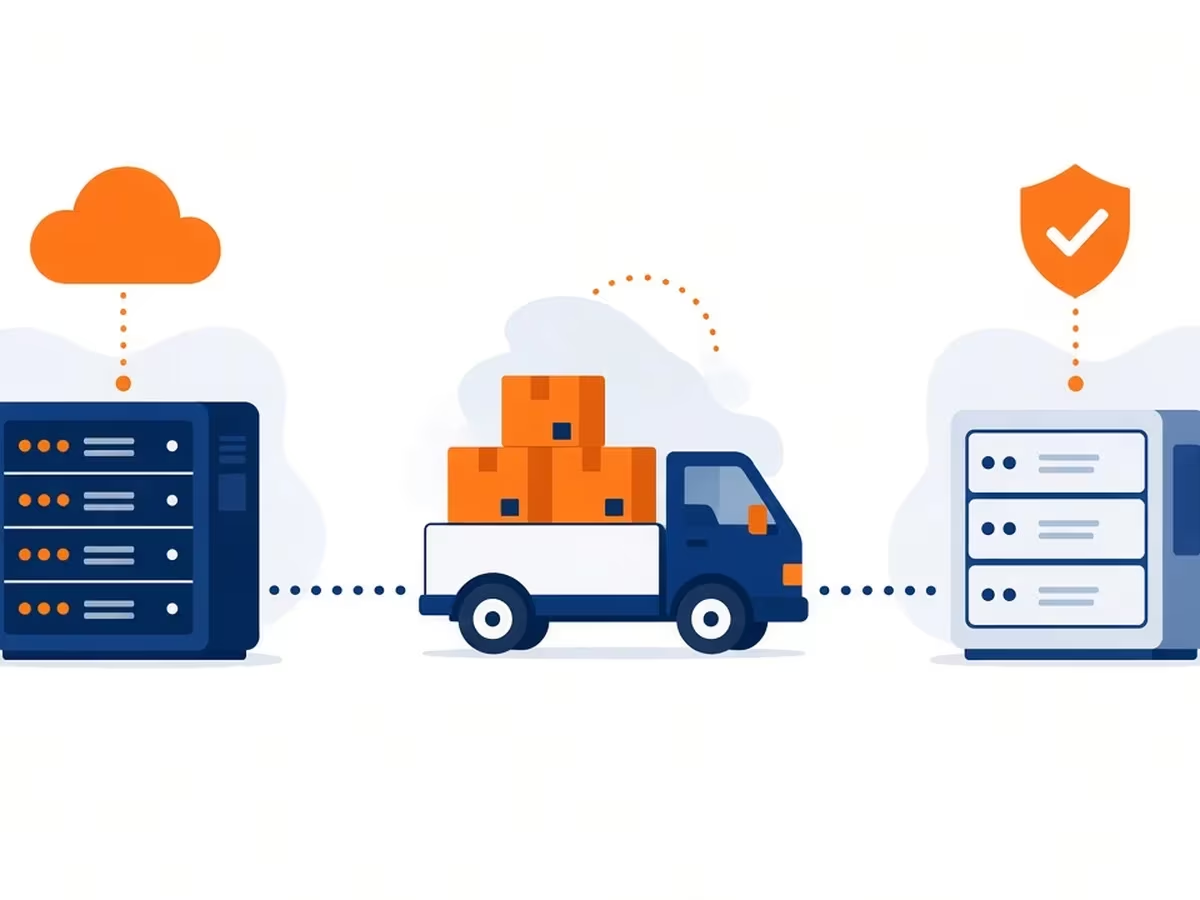
Moving to a faster or cheaper host is one of the best upgrades you can give your website, but the migration itself can feel scary. The good news is that you can migrate a WordPress site with UpdraftPlus in a few clear steps, without touching FTP or phpMyAdmin. This guide shows you how to move your whole site, including files, database, themes and plugins, to a new host, and how to check that everything works afterwards.
What You Need Before You Start
- UpdraftPlus Premium (or the Migrator add-on). Direct site-to-site migration is a premium feature. You can download UpdraftPlus Premium from our site.
- A fresh WordPress install on the new host. Most hosts offer a one-click installer.
- Admin access to both sites.
- A recent full backup of the old site, stored somewhere safe. If you have never made one, follow our step-by-step UpdraftPlus backup guide first.
Tip: keep your old hosting account active until the new site is fully tested and your domain points to it.
How UpdraftPlus Migration Works
According to the official UpdraftPlus migration documentation, you install UpdraftPlus Premium on both the old and the new site. The new site creates a key, the old site uses that key to send its backup directly, and then you restore the backup on the new site. During the restore, UpdraftPlus can search and replace the old site address in the database, so links and images point to the new location.
Step 1: Install UpdraftPlus Premium on Both Sites
- On the old site, install and activate UpdraftPlus Premium.
- On the new host’s fresh WordPress install, install and activate UpdraftPlus Premium too.
- On both sites, open Settings > UpdraftPlus Backups to confirm the plugin loads correctly.
Step 2: Create a Migration Key on the New Site
- On the new site, go to the Migrate / Clone tab.
- Choose Receive a backup from a remote site.
- Give the key a name, for example “from-old-host”, and click Create key.
- Copy the key that appears.
Step 3: Send the Backup from the Old Site
- On the old site, open the Migrate / Clone tab.
- Choose Send a backup to another site.
- Paste the key into the Site key field and click Add site.
- Select what to send: database, plugins, themes, uploads and other files. For a full move, select everything.
- Click Send and wait. Large sites can take a while, so keep the browser tab open.
Step 4: Restore the Backup on the New Site
- On the new site, go to the Backup / Restore tab. The received backup appears in the list of existing backups.
- Click Restore and select all components.
- Make sure Search and replace site location in the database is ticked. This updates the old URL to the new one.
- Start the restore and wait for the success message.
After the restore, you will be logged out, because the database now comes from the old site. Log in again with your old site’s username and password.
Alternative: Migrate Without a Direct Connection
If the two sites cannot connect directly, for example because of a firewall, you can migrate manually:
- Take a full backup on the old site.
- Download each backup file (database, plugins, themes, uploads, others) to your computer.
- On the new site, go to Backup / Restore and click Upload backup files.
- Upload all the files, rescan, then restore with search and replace enabled.
Step 5: Point Your Domain to the New Host
If you are keeping the same domain, update its DNS records (usually the A record, or the nameservers) to point to your new host. DNS changes can take time to spread around the world. During that time, some visitors may still see the old server, which is another reason to keep it running for a few days.
After the switch, make sure an SSL certificate is installed on the new host so your site loads over HTTPS.
Step 6: Post-Migration Checklist
- Re-save permalinks: go to Settings > Permalinks and click Save Changes to refresh rewrite rules.
- Check key pages: home page, blog, contact form, checkout (if you run a shop).
- Clear caches: purge your caching plugin and any CDN. If you use Elementor, regenerate CSS under Elementor > Tools.
- Test emails: send a test from your contact form. A new host may need SMTP settings.
- Re-link backups: reconnect your remote storage in UpdraftPlus and run a fresh backup on the new host.
- Check licenses: some premium themes and plugins, such as Betheme or The7, may ask you to re-register on the new domain if you use an official license.
Common Migration Problems and Fixes
Images or links still point to the old site
The search and replace step was probably skipped. Restore the database again with the option ticked.
The migration times out or stops
Big uploads folders can hit server limits. Try sending the components separately, or use the manual upload method above.
White screen after restore
This is often a PHP version mismatch or a plugin conflict. Check that the new host uses a supported PHP version, then rename the problem plugin’s folder over FTP to disable it.
“Error establishing a database connection”
Check that the database details in wp-config.php on the new host match the database you created there.
Frequently Asked Questions
Can I migrate with the free version of UpdraftPlus?
The free version can back up and restore, but direct site-to-site migration and the Migrate / Clone tools need UpdraftPlus Premium or the Migrator add-on.
Will migrating affect my SEO?
If you keep the same domain and URLs, your rankings should not be affected. Keep downtime short and test everything before switching DNS.
Final Thoughts
When you migrate a WordPress site with UpdraftPlus, the hardest parts, like moving the database and replacing URLs, are done for you. Install the plugin on both sites, connect them with a key, send the backup, restore it and run through the checklist. Before you start, it is also worth running a quick security check. Our guide on how to scan WordPress plugins for malware helps make sure you are not moving any problems to your new host.
